



When only pages 32 to 47 of a 100-page PDF are on the exam, processing the other 84 pages adds noise before studying even begins. The same loss happens when lecture slides, photographed handouts, and Word notes have to be converted one at a time.
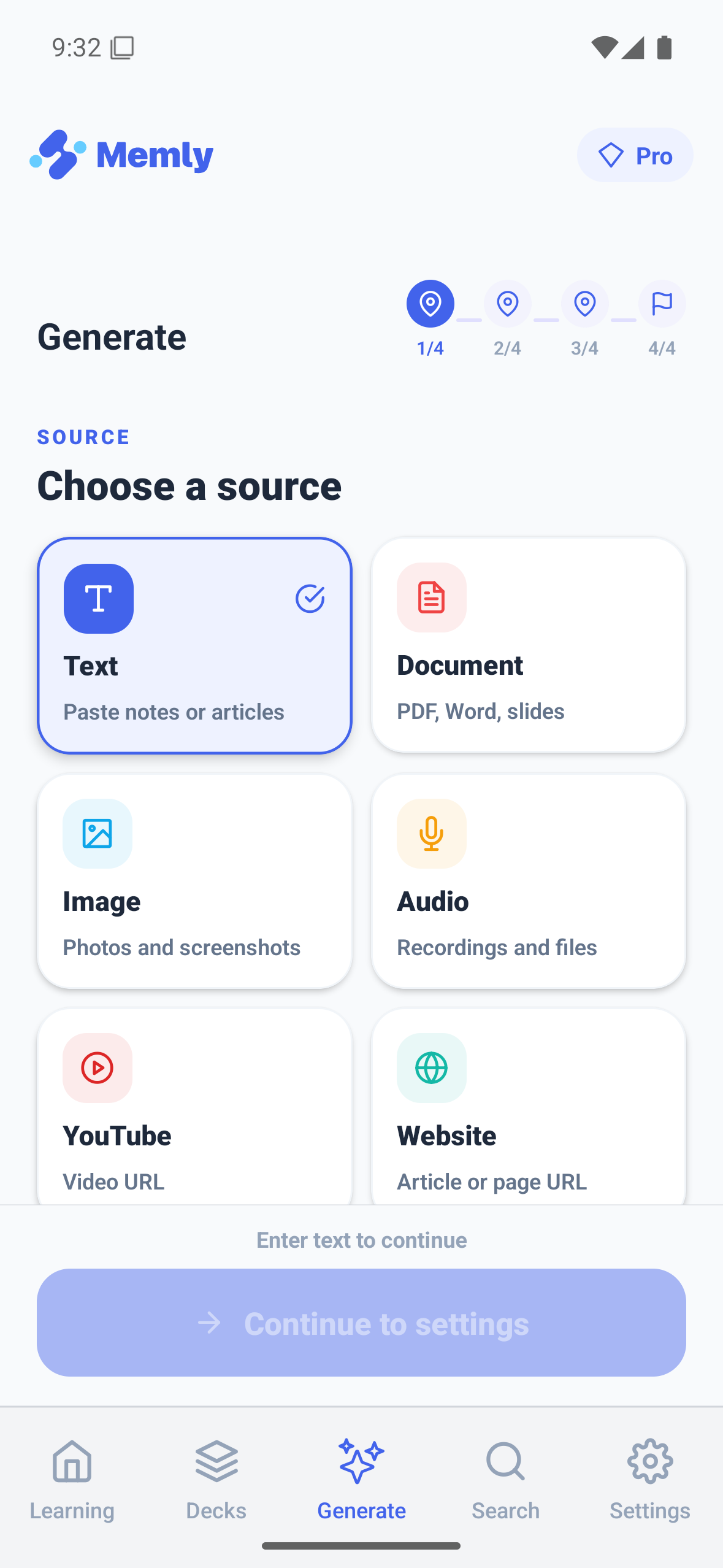
Memly 2.0 uses artificial intelligence (AI) to create flashcards. The process starts with a simple idea: choose the study material and the relevant range first, then let Memly build cards using only the material you selected.
These features are available on the web, on iOS, and on Android. What you see may still vary by device and app version.
Create flashcards from more types of study material
Memly already turned PDFs, images, YouTube videos, audio, and text into flashcards. Memly 2.0 lets you use Word and PowerPoint in the same card-creation process and add several images together on supported devices.
| Study material | How Memly 2.0 handles it |
|---|---|
| Select a page range before creating cards | |
| Word | Import a Microsoft Word document (.docx) |
| PowerPoint | Select slides and include extracted notes and text |
| Images | Process multiple images together instead of one at a time |
| Mobile camera | Capture printed material and continue to create cards |
| Audio, YouTube, or text | Create cards from these materials in the same place |
Select the relevant pages or slides before creating cards
A file is only a container. The real study unit may be a chapter, a lecture segment, or the slides assigned for one quiz. Memly 2.0 lets you specify PDF pages or PowerPoint slides before Memly reads the material and creates flashcards.
This changes the card-creation process in three practical ways:
- The AI receives only the relevant material, so unrelated sections are less likely to affect the cards.
- The preview is easier to inspect because it represents the material you actually intended to study.
- You can return to the same source and generate cards for another range without treating the entire file as one group of flashcards (a deck).
Word documents do not carry reliable page boundaries in the same way, so page-range selection does not apply to Word imports.
Combine photographed and pasted material
Printed packets and whiteboards rarely arrive as a tidy PDF. On mobile, up to 20 photos or images of study material can be handled together. On Web, multiple images can be processed together, and you can paste or add supported images, PDFs, or audio files directly.
This is useful when a concept spans two pages or when a lecture has been captured as several photos. Memly treats the collection as parts of the same lesson instead of forcing you to create separate, fragmented decks.
Generate from the source, not from a number
A card count is a request, not permission to invent. Memly 2.0 aims for the number you select, but returns fewer cards when the material does not contain enough distinct, useful facts. It can also create additional cards from the same material while checking the questions already in the deck to reduce obvious duplication.
Memly was updated so each card can be understood without reopening the original document. Answers can include a conclusion, reason, and example when the material supports them. Memly also avoids questions that only make sense while watching the original speaker or video.
Choose one language for cards and another for explanations
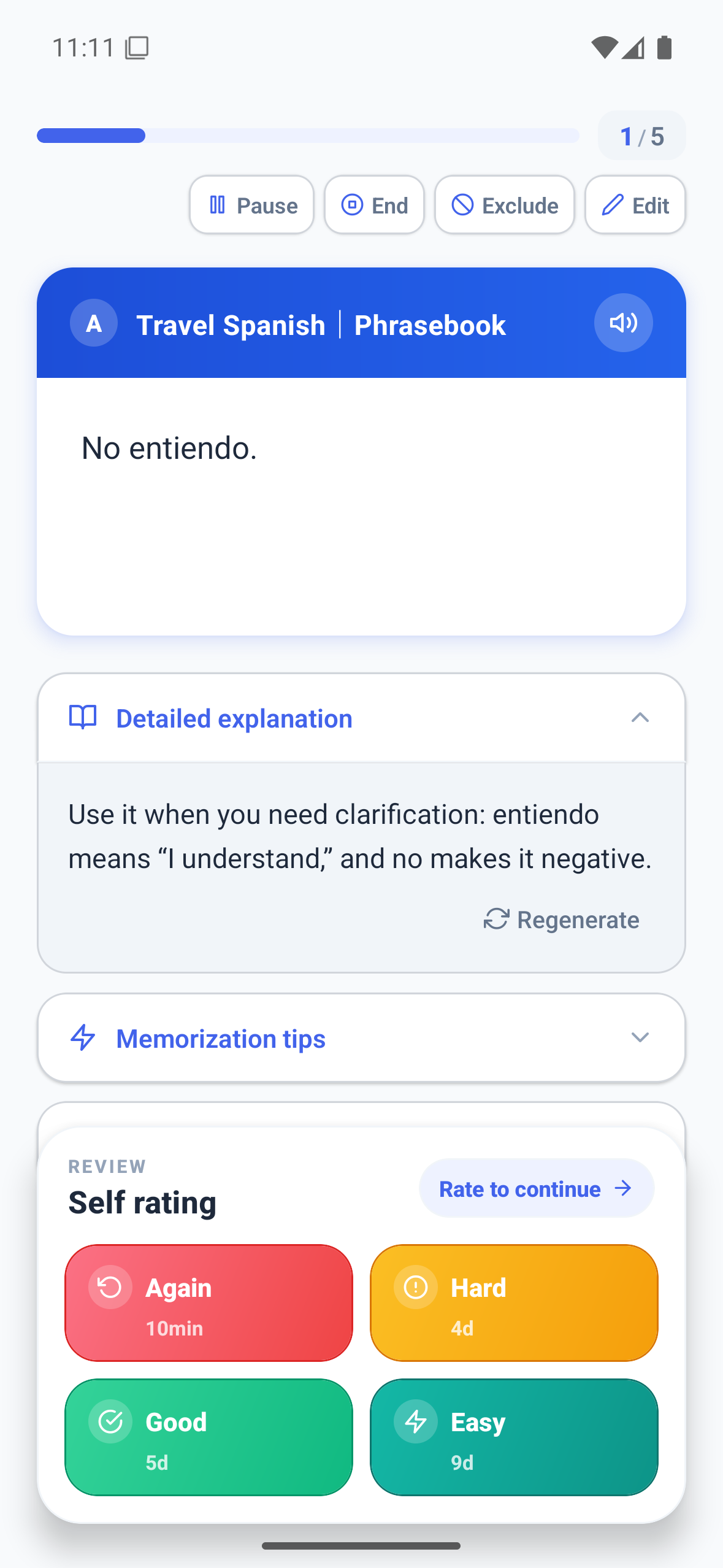
Language learning often needs two languages at once. A learner may want English expressions preserved on the card while receiving guidance in Japanese or Korean. Memly 2.0 separates the card-generation language from the language used for AI-generated explanations and guidance while studying.
A dedicated language-learning mode can keep target words and expressions in the source language while writing explanations in the learner’s language. The goal is vocabulary and expression practice, not unrelated trivia about the article.
What to check before accepting an AI-generated deck
Better inputs reduce risk, but they do not remove the need for review. Use the full preview to check the deck before studying:
- Does every question make sense without reopening the source?
- Is the answer supported by the selected pages, slides, or images?
- Has one idea been split into cards that can be recalled clearly?
- Are duplicates or low-value details easy to remove?
- Is the output language consistent with the deck’s purpose?
The fastest way to create cards is not the one that produces the most. It is the one that produces a deck you can trust enough to review.
Continue from card creation into review
Creating flashcards helps only if you review them later. After creating a deck, use Memly 2.0 Memory Review to find cards you are starting to forget, or attach a date with Exam Mode. You can then choose among the Memly 2.0 study modes or move to audio learning when reading the screen is not practical.
Start with one source and one meaningful range. To see how card creation connects to the rest of studying, read the Memly 2.0 release overview and our guide to AI-assisted memorization.
